.png)
 1 hour ago
1
1 hour ago
1


Storage is one of the most vital components in a smartphone, and when you run out, it can completely break your user experience. You can’t download new apps, you can’t take any more photos, you can’t receive text messages, and your apps may even crash or refuse to open. Now you have two choices — upgrade to a new phone with more storage, or take advantage of the storage purging features built into iOS and Android.
Check the storage on your phone
Before you do anything, you’ll need to check the storage capacity on your device to see how much storage is taken and how much is still available. As a general rule of thumb, it’s a good idea to leave at least 10%-20% of the storage on your device unused so that your operating system and apps have plenty of room to expand and shrink as data comes and goes.
Although apps are some of the biggest storage hogs, other items can also contribute.
To check the storage capacity on iPhone, open the Settings app, tap “General,” and then open “iPhone Storage.” Here, you’ll find a chart that includes a breakdown of everything that’s downloaded to your device, including apps, music, photos, iCloud Drive files, messages, iOS itself, and system data.
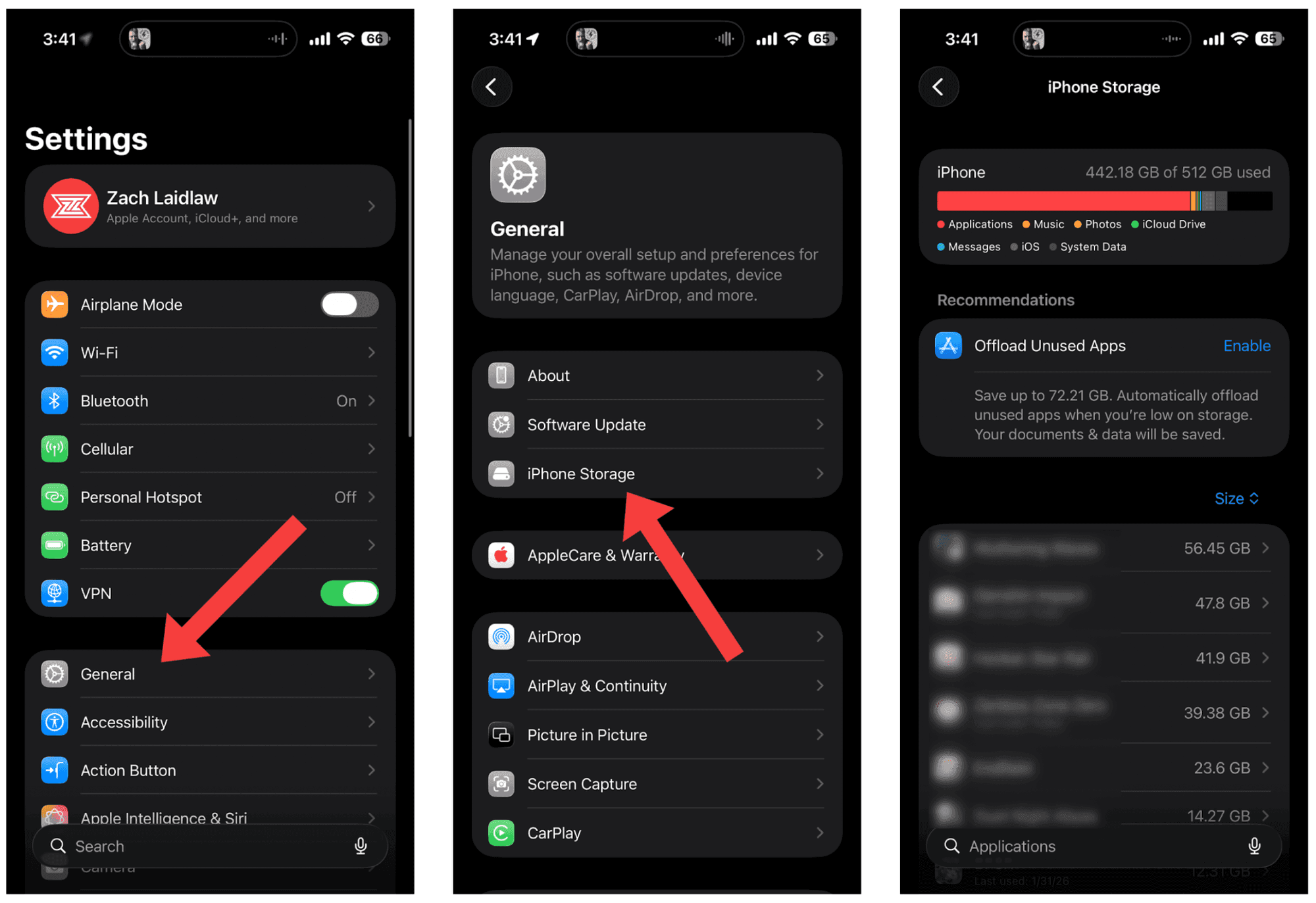 Screenshots by Zach Laidlaw/iPhone 17 Pro Max on iOS 26
For Android, the process will look a bit different depending on your device. Samsung Galaxy users can navigate to the storage capacity page by opening the Settings app. Then scroll down, tap “Device care,” and select “Storage” from the menu.
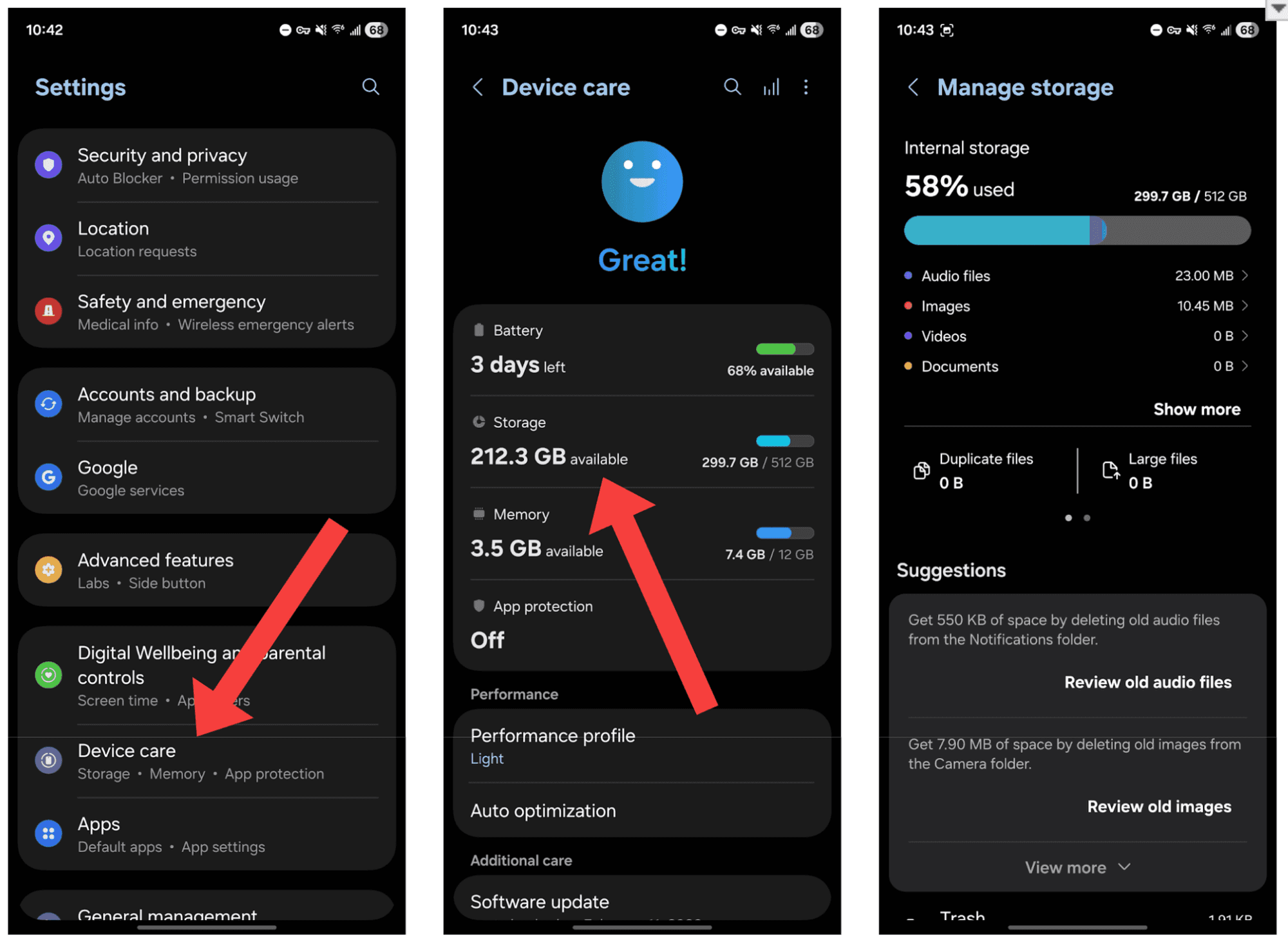 Screenshots by Zach Laidlaw/Samsung Galaxy Z Fold7 on Android 16
It’s easier for Google Pixel users. Simply open the Settings app and select “Storage.” From here, you’ll see a clear breakdown of your downloaded files, including games, apps, images, trash, audio files, videos, documents, the operating system, and temporary files.
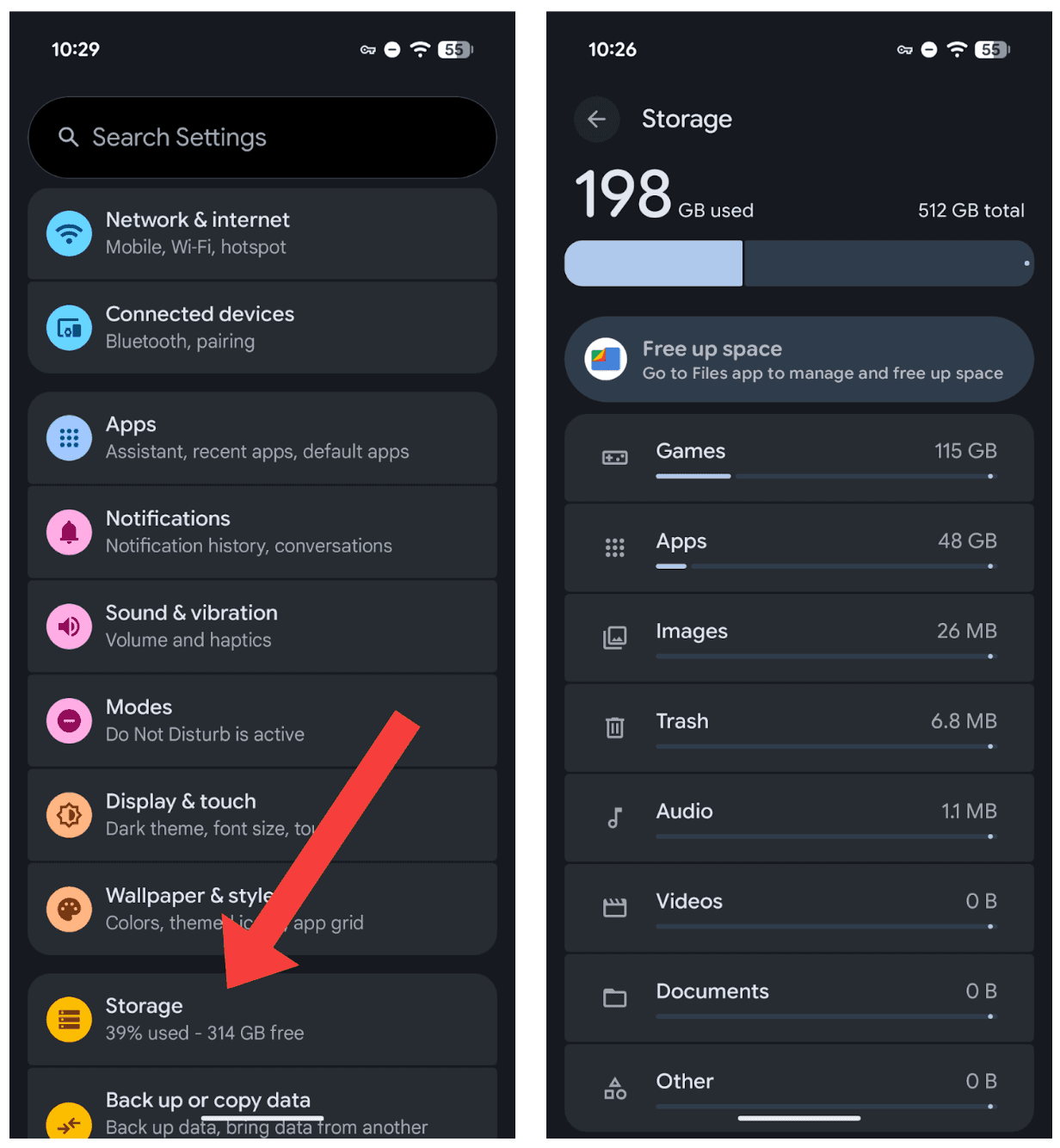 Screenshots by Zach Laidlaw/Google Pixel 10 Pro XL on Android 16
Although these pages look different depending on your phone’s make, model, and OS, the purpose is the same — to clearly show which files are taking up the most storage on your phone so that you can target them for archival or deletion.
Free up storage on your phone
Now that you know which apps and files are taking up the most space, you can do something about it. Both iOS and Android offer ways to offload or delete unused apps and files so that you can free up space for more important things.
RELATED: How to put your text messages on the strongest privacy setting
On iOS, tap “Enable” in the “Offload Unused Apps” section. This will essentially remove unused apps from your phone while keeping their data and settings in the cloud, ensuring you can re-download these apps at any time if you need them. Later, if you decide you don’t want to archive apps any more, you can disable this feature again by simply going to Settings > Apps > App Store, and uncheck “Offload Unused Apps.”
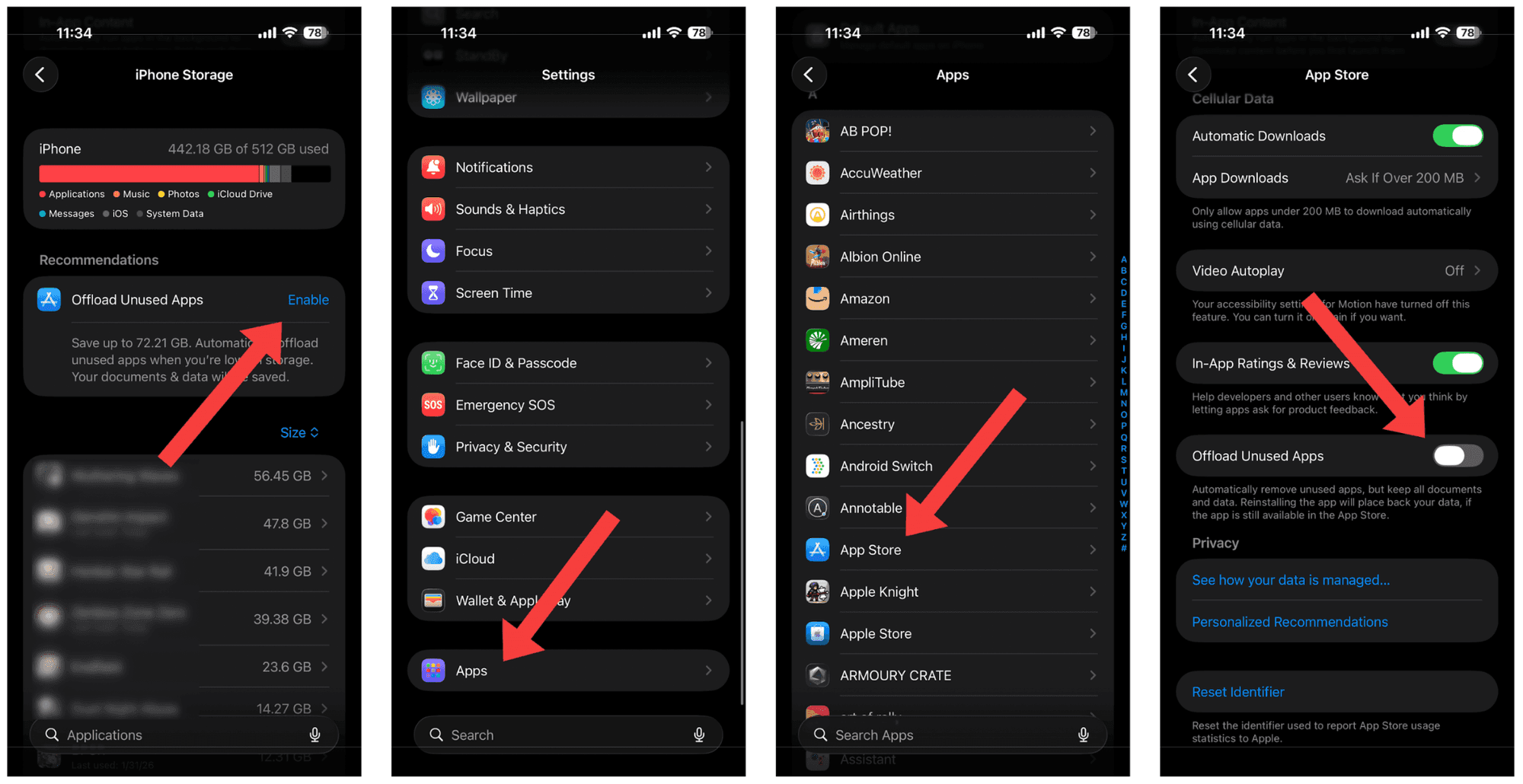 Screenshots by Zach Laidlaw/iPhone 17 Pro Max on iOS 26
On Samsung Galaxy, tap “Unused apps” at the bottom of the page. On this screen, you can easily archive apps to reclaim a bit of storage or uninstall them to take back even more space. Unarchived apps will still show up as grayed-out icons in your app drawer; simply tap on one to redownload the app and its data when you need it. Uninstalled apps, however, will have to be completely reinstalled and set up to use them again.
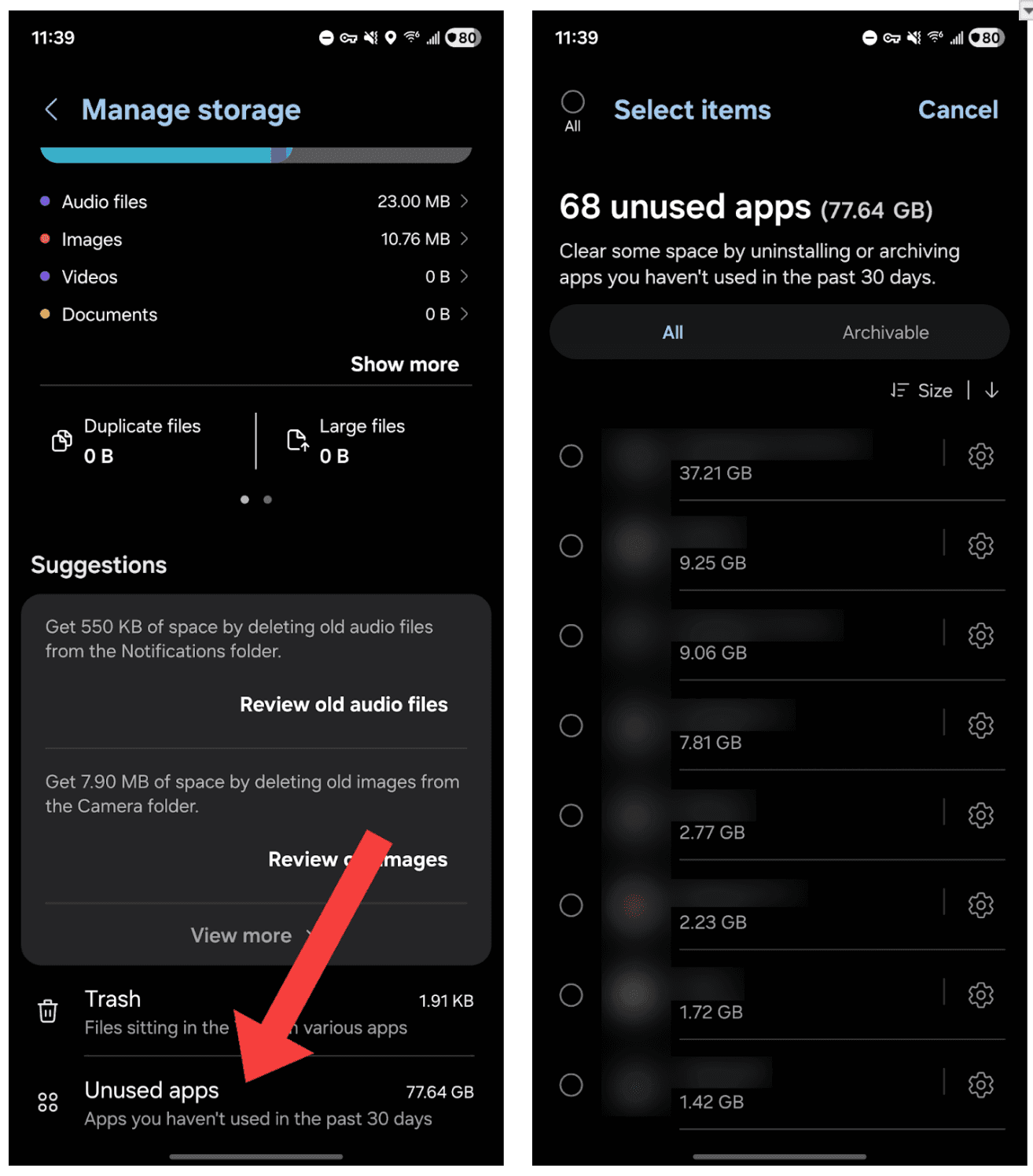 Screenshots by Zach Laidlaw/Samsung Galaxy Z Fold7 on Android 16
For Google Pixel, tap “Free up space.” On the next screen, you’ll see a list of duplicate files and unused apps. Choose which one you want to purge, select the files to uninstall, and confirm. Note that if you want to archive an app instead of deleting it, you will need to go back to the main Settings page and select “Apps.” Choose the app you want to archive from the menu and tap the “Archive” icon.
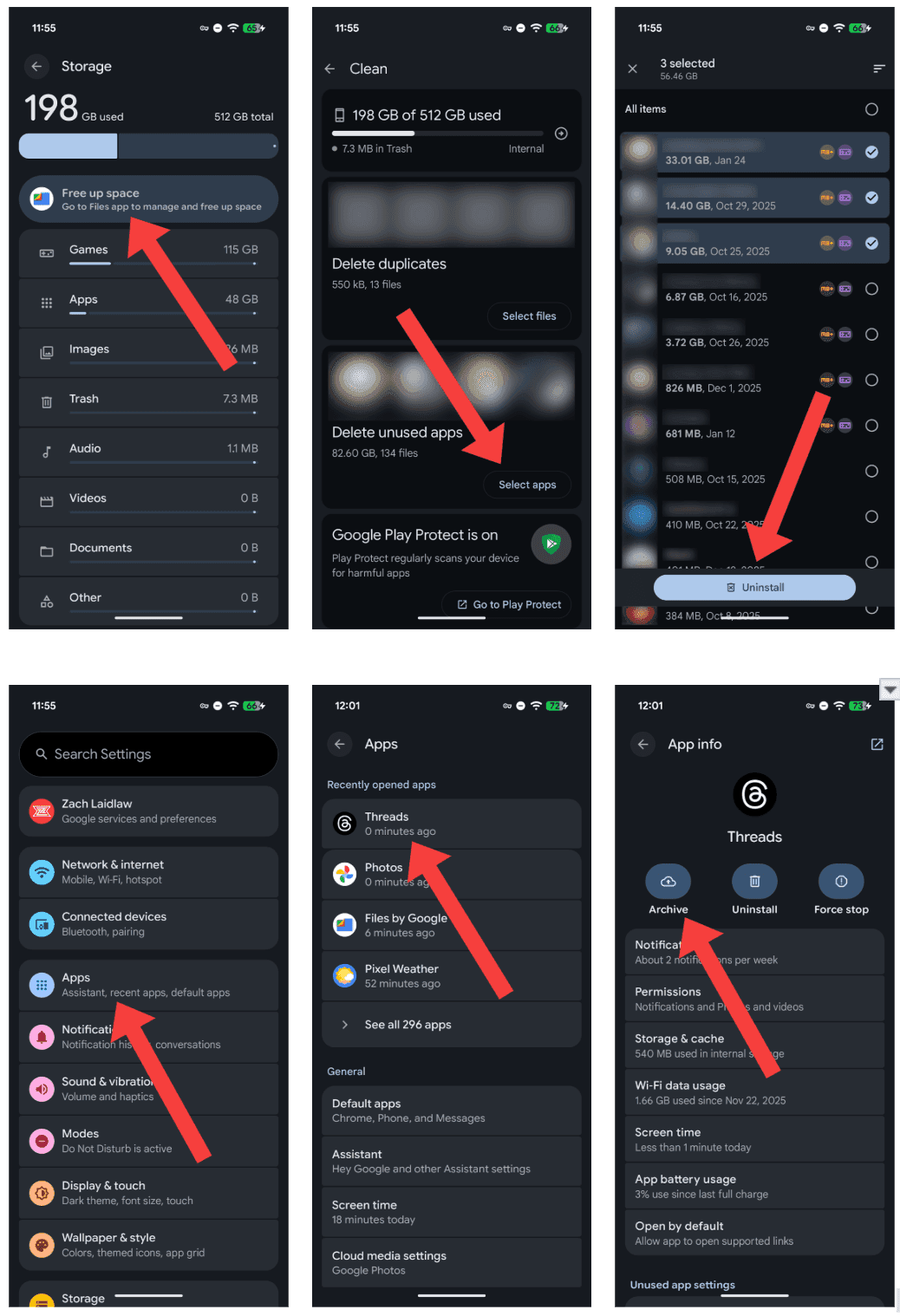 Screenshots by Zach Laidlaw/Google Pixel 10 Pro XL on Android 16
More ways to free up phone storage
Although apps are some of the biggest storage hogs, other items can also contribute to inflated storage numbers — photos, videos, music, PDFs, and various documents. The easiest way to get these off of your device’s local storage is to upload them to a cloud service, but wait! Before you jump to that next step, there are specific ways to handle these properly. Keep an eye out for more guides on how to back up your photos, videos, and music, all coming soon.













 English (US)